Use the Action Wheel
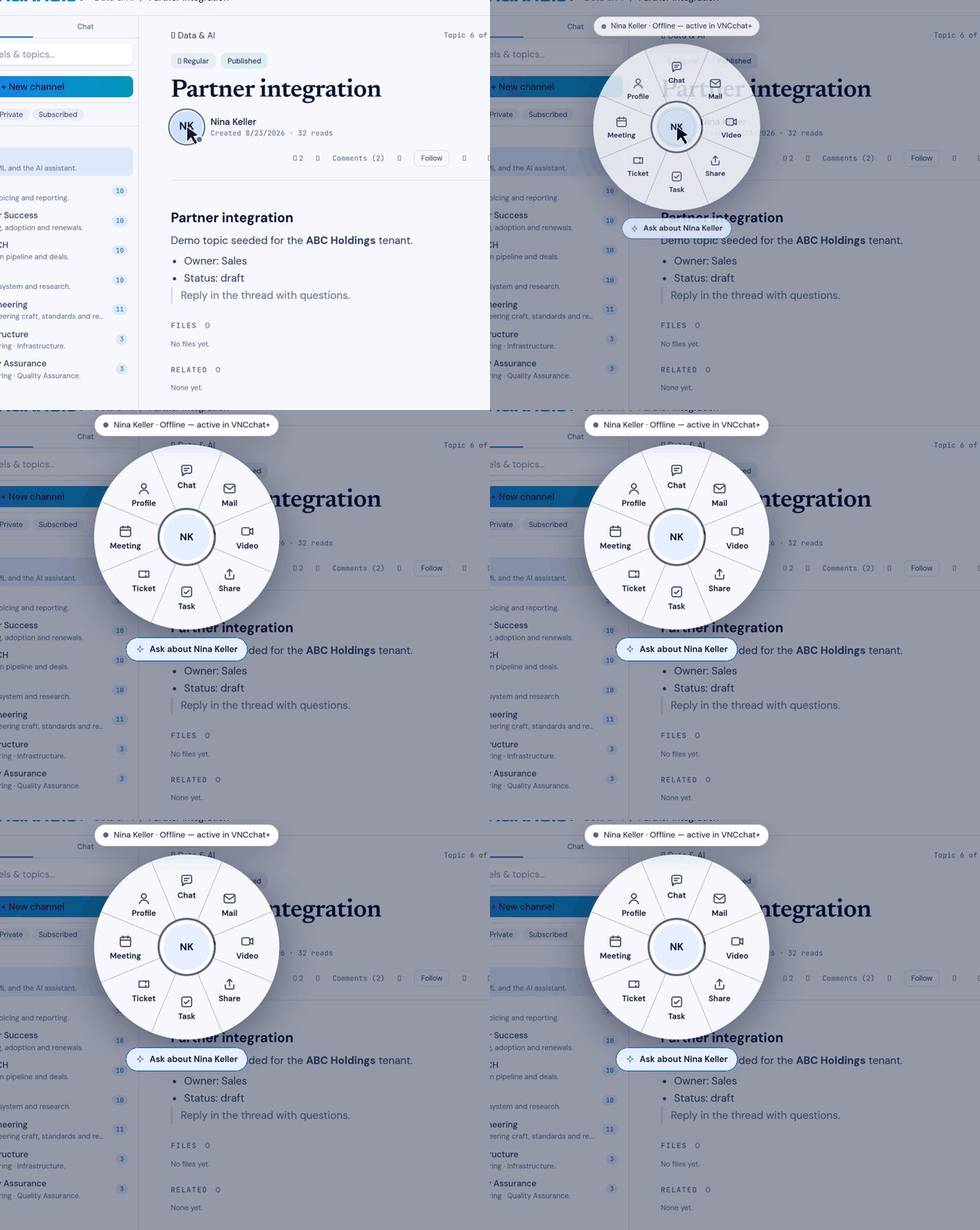
The Action Wheel is the suite’s way to act on a person. Wherever a person appears — a message author, a contact, a member of a channel — one click opens a radial menu of everything you can do with them, without leaving what you are reading. It is the same wheel in every VNClagoon+ product.
Open it
Section titled “Open it”- Select the person’s avatar.
The wheel opens over the current screen. The centre shows the person: their avatar, name and presence. Under it, Ask about name starts an AI brief (see AI options).
The actions
Section titled “The actions”Which actions appear depends on the product you are in; each is offered only if that product can perform it.
| Action | What it does |
|---|---|
| Chat | Opens (or starts) a direct conversation with the person. |
| Composes an email to the person. | |
| Video | Starts a video call with the person. |
| Meeting | Schedules a meeting with them. |
| Task | Creates a task assigned to them. |
| Ticket | Opens a ticket about, or with, them. |
| Share | Shares the item you are looking at with them. |
| Profile | Shows their profile — role, org and contact details, plus their timeline and AI brief (more). |
What happens next
Section titled “What happens next”An action either:
- runs inline — for example, the task or mail is created where you are, and the wheel confirms with a short message; or
- is delegated — the product that owns the action opens, focused on that person (for example, VNCmail+ with a new message addressed to them).
Keyboard
Section titled “Keyboard”- Press
1–9to fire the action in that slot. - Press
Esc, or select outside the wheel, to close it.
- The wheel respects your permissions and the person’s visibility in VNCdirectory+. An action you cannot take is shown disabled, with the reason.
- A former member or deleted user appears with a neutral identity, and only the actions that still make sense are offered.
- Availability is the person’s presence (Available, Busy, Do not disturb); the wheel shows it at the centre.