Plan capacity
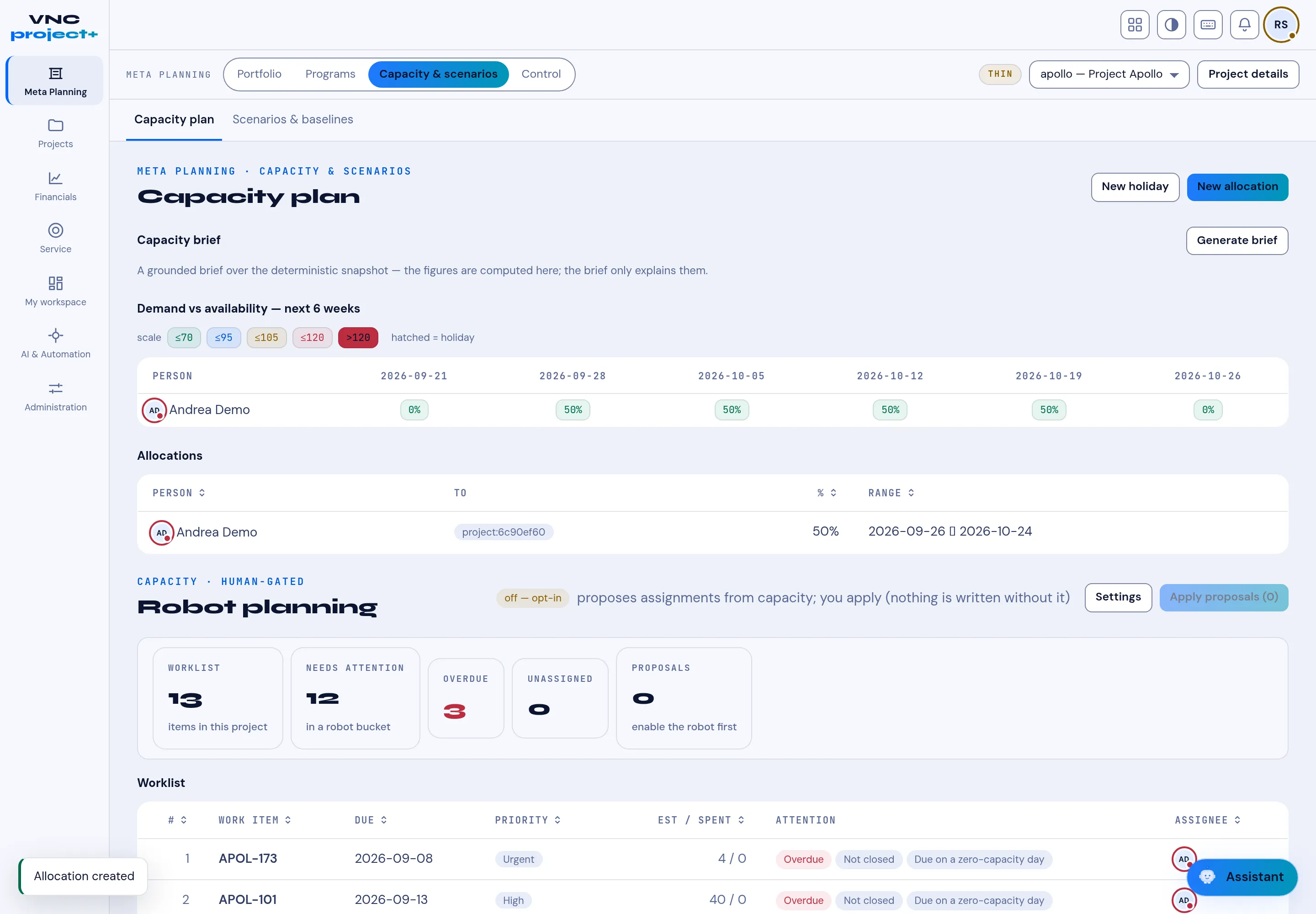
Capacity planning compares how much each person is committed to (their allocations) with how much time they actually have, week by week. It lives under Meta Planning → Capacity & scenarios → Capacity plan.
Read the plan
Section titled “Read the plan”- Open VNCproject+ and choose Meta Planning → Capacity & scenarios.
- The Demand vs availability — next 6 weeks heat-map has one row per person
and one column per week. Each cell shows that person’s demand %:
- ≤70, ≤95, ≤105, ≤120, >120 (the scale is above the grid).
- A hatched cell is a holiday.
- The Allocations table lists each commitment: Person, To (project), % and Range.
Add an allocation
Section titled “Add an allocation”- Select New allocation.
- Under Person, select Attach existing…, search and choose the person.
- Under To (project), do the same for the project.
- Leave Target type at project, set Allocation %, and the From / To dates.
- Select Save. The person’s demand appears in the weeks the range covers.
Holidays and the robot
Section titled “Holidays and the robot”- New holiday blocks availability — the affected weeks show as hatched.
- Robot planning is human-gated: it proposes assignments from capacity, and Apply proposals is the only thing that writes them. It is off by default.
Result
Section titled “Result”Person My capacity shows your own load against 100%; this page shows the whole team. Over 100% means someone is over-committed.