The left navigation
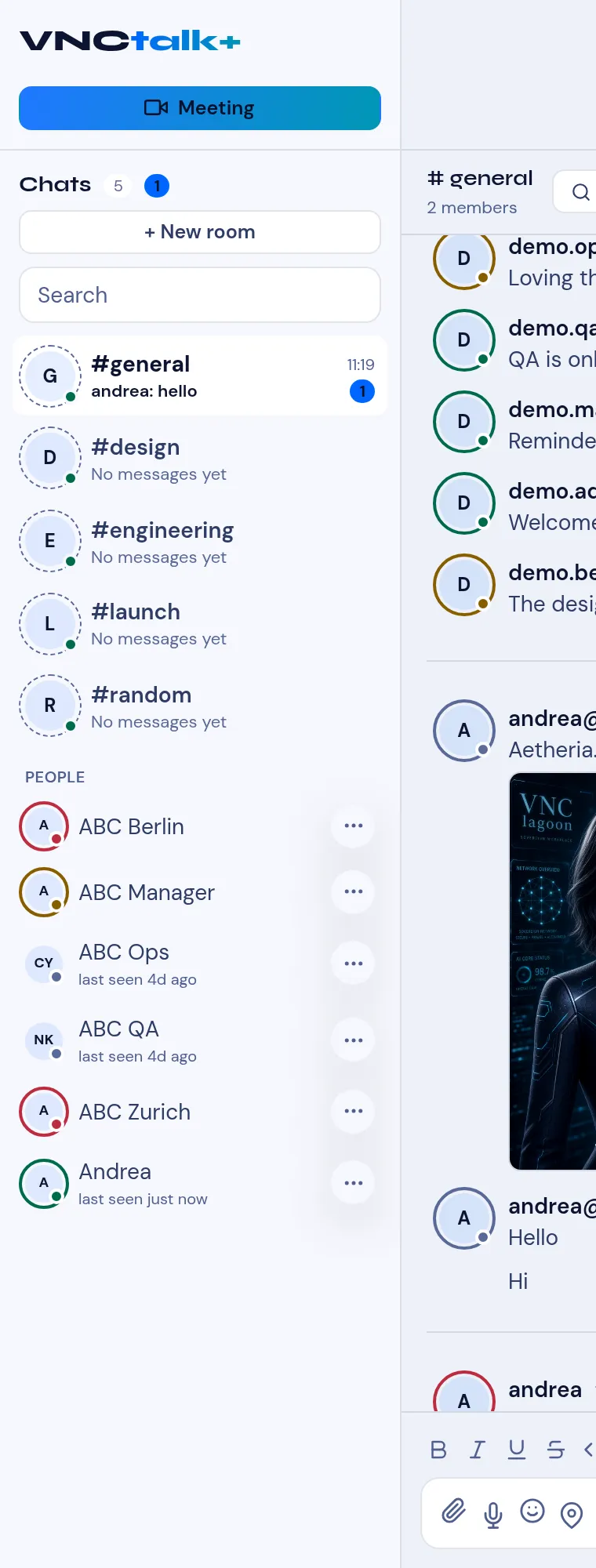
The VNCchat sidebar (left) is where you start a meeting, pick a room, search and reach people. The middle column is the conversation; the right column is the room or DM detail.
Meeting
Section titled “Meeting”Starts (or schedules) a video meeting in one click — the suite calls it Meeting. → Start or join a video meeting · Share your screen
The top section lists your rooms (public and private) with the latest message, a timestamp, and badges:
- A number badge — unread messages in the room.
- @1 — a mention of you in the room.
+ New room creates a room, and Search finds messages. → Create a room · Search your messages · Invite people to a room · Get around a room · Room settings
People
Section titled “People”The PEOPLE section lists the people you can message directly, with their presence and last seen. It is collapsible, and a person you already have a direct message with is marked as such. Open a person to start a direct message; the ⋯ menu holds the actions for that person (for example the Action Wheel). The search box reads Search chats & people and finds both. → Send a direct message · Use the Action Wheel